Photo guide
How to Convert HEIC to JPG and Keep HDR
Your JPG can keep the bright sunlight, reflections, and highlights in a supported HDR photo. FramePuff keeps HDR automatically when the file is supported.
Conversion runs on your device. Your photos are not uploaded, and no account is needed.
Convert your HEIC photosConvert in three steps
Add your original photos
Open the HEIC to JPG converter and choose one or several HEIC, HEIF, or HIF files. Use the original file when possible: a photo forwarded through another app may already have lost HDR.
Start with Recommended
Choose Recommended and select Convert to JPG. There is no HDR switch to turn on: supported HDR is kept automatically. For several photos, conversion runs one at a time.
Choose Smaller file to save space or More detail for higher quality. JPG compression can change detail even at quality 100; keeping HDR does not make JPG lossless.
Preview, check, and download
Review the result, including its size and HDR status. Download a JPG or save completed photos together as a ZIP. Your original files stay unchanged.
What about photo details and rotation?
Optional photo details are removed by default. In Advanced options, enable Keep extra file information if you want supported shooting details such as date, camera, or location. That can include private information. Color information needed to display the JPG correctly is kept independently of this setting. Rotation is applied to the image, then direction tags are removed.
If camera-specific details are too large for JPG, FramePuff removes those details when it can safely keep the regular fields, and tells you in the result.
Which HDR photos are supported?
Support depends on what is inside the file, rather than just its phone or camera brand. The converter checks each photo.
| Photo type | Current support |
|---|---|
| Apple HDR photos | Supported Apple gain-map layouts, including tested iPhone 15 Pro, iOS 18, and iPhone 16 Pro Max samples. Some Apple files are still unsupported. |
| Standard HDR gain maps | Supported ISO gain-map layouts with readable brightness information and matching image geometry. |
| PQ or HLG HDR photos | Supported color encodings, including tested Canon EOS R8 PQ and Sony FX30 HLG samples. Some camera files are still unsupported. |
| Samsung private HDR gain maps | Not currently supported. The tested Galaxy S24 Ultra files cannot keep HDR in this converter. |
| Standard HEIC photos | Convert to standard JPG. A photo without HDR does not gain HDR by changing its format. |
These examples establish support for the tested files, not every photo from those devices. HEIC sequences and photos with transparency are not currently supported.
If your HDR photo is unsupported
When a safe standard version is available, the converter offers Convert to standard JPG · HDR will be lost. This is your choice; we do not silently remove HDR. Some unsupported or damaged files cannot be converted, even to standard JPG.
Technical support limits
Supported gain-map paths include qualified Apple layouts and ISO tmap version 0 with an SDR base and gain values calculated in the base color space. Matching rotation, mirroring, and supported crop layouts are checked. HDR bases, reverse gain maps, conflicting geometry, and unknown auxiliary images can be rejected.
PQ/HLG inputs need supported BT.709, BT.2020, or Display P3 color declarations. Missing, contradictory, or unsupported color profiles can prevent conversion. Brand names, file extensions, and bit depth alone do not establish HDR support.
JPG cannot retain editable Apple Photographic Styles or the full HEIC container. The result preserves the supported rendered photo, rather than every editing feature.
A real conversion you can try
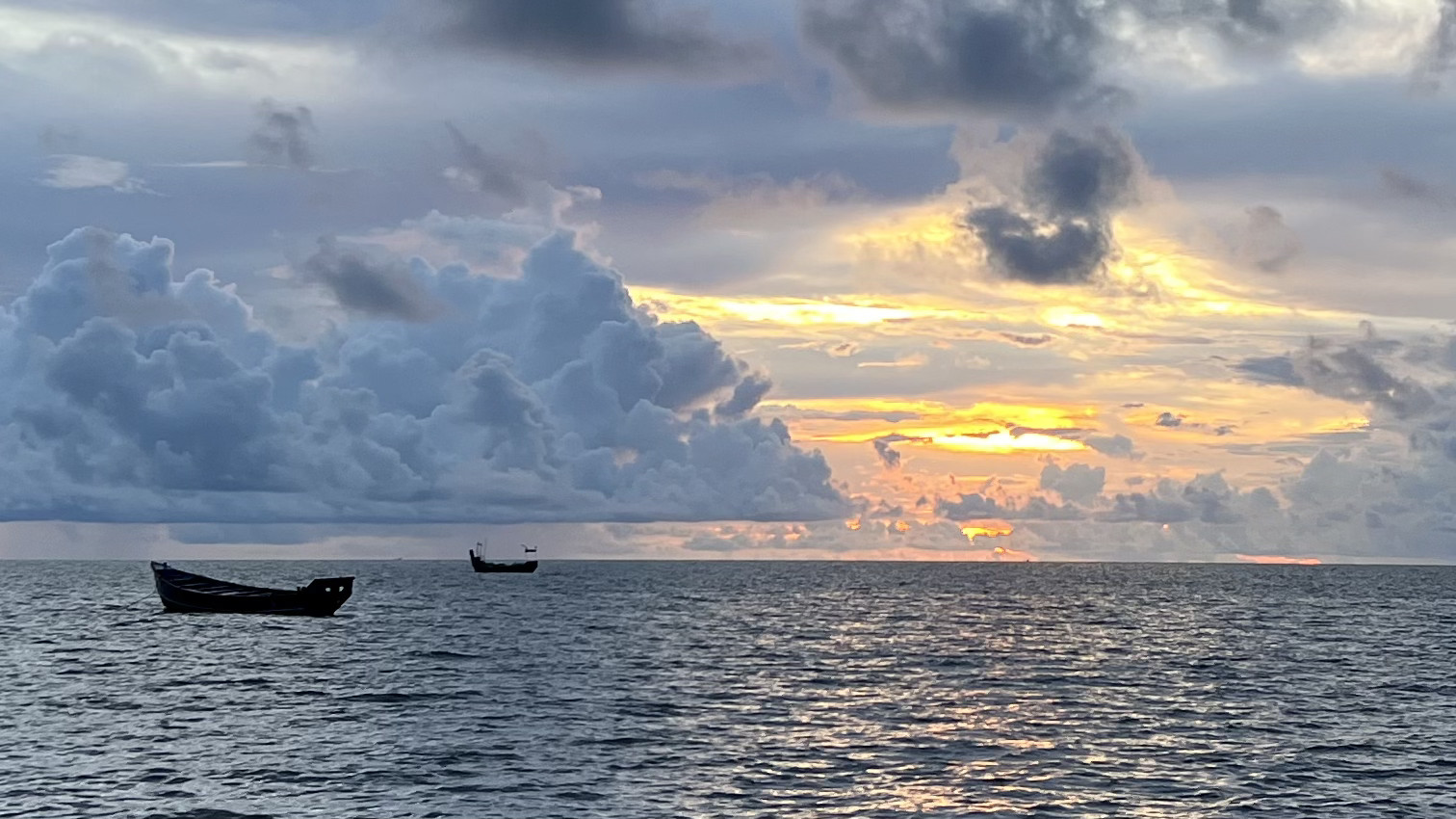
This sunset photo is from John Charankattu’s MIT-licensed sample collection. The files below are actual outputs, with no brightness filter or simulated HDR effect.
- Original HEIC
- 233.4 KB
- Converted HDR JPG
- 521.7 KB
- Standard view of the same JPG
- 311.4 KB
Settings: quality 90, 1512 × 850 pixels, optional metadata off. The HDR JPG is larger than the HEIC: changing format improves compatibility, but does not always save space.
The standard view uses the same encoded base photo with the extra HDR layer removed. It was not resized, darkened, or encoded again.
Download original HEICDownload HDR JPGDownload standard JPG

Exact sizes, file hashes, and conversion settings · Photo license
HEIC → JPG · HDR preserved
Keep the glow in your photos.
Supported HDR photos keep their bright highlights when you convert to JPG. Switch this example off and on to see the difference.
For the full effect, use an HDR screen and a browser that supports HDR photos. On other screens, both views may look the same.
HEIC 233.4 KB → HDR JPG 521.7 KB
Quality 90 · This JPG is larger. Converting for compatibility does not always save space. Sizes & settings.
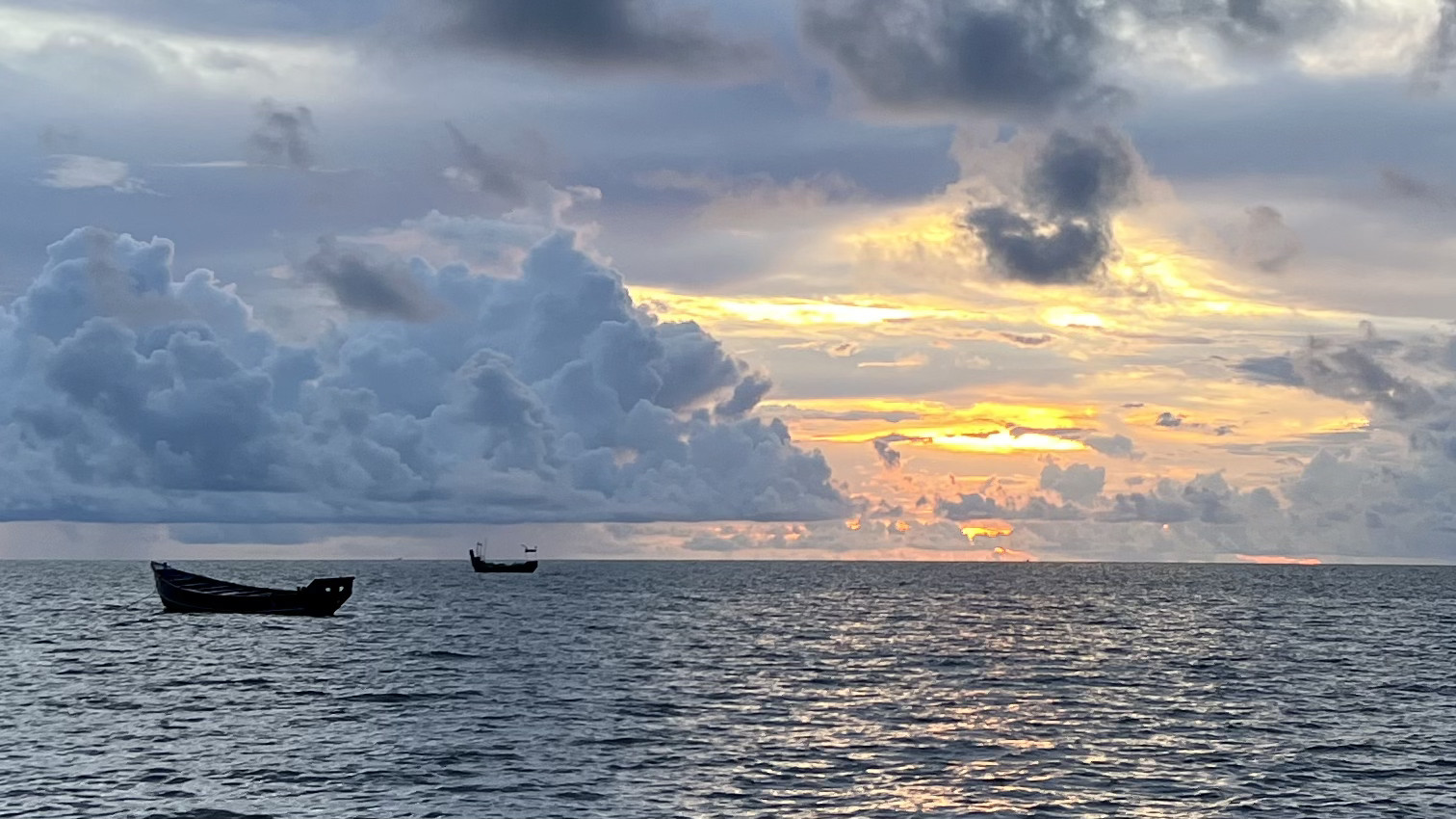
HDR on · Converted JPG with HDR preserved.
Sample: John Charankattu · Original HEIC (opens in a new tab) · MIT license
No HDR screen? You can still check the file.
Both views may look the same on a standard screen. That does not mean HDR was lost.
The HDR sample contains the normal photo plus an extra brightness layer, called a gain map. The standard sample contains only the normal photo. You can download both files, even with JavaScript off.
Download HDR JPG · Download standard JPG
For a technical file check, an image inspector that reads HDR gain maps can confirm the extra layer is present. File size alone is not proof of HDR. To judge the brighter highlights, open the HDR JPG on an HDR display in a viewer that supports HDR photos.
Illustration · works on any screen
More room for bright highlights.
HDR keeps extra light information, so a compatible screen can show brighter sunlight and reflections.
This diagram explains the difference. It does not reproduce HDR brightness.
Other real files we checked
Our conversion checks also include these publicly shared photos. We link to their sources; those photos are not hosted here.
iPhone 16 Pro Max · 6048 × 8064
A sample with a standard HDR gain map and additional Apple editing data. The converted HDR image was checked against macOS software rendering at full resolution. This does not preserve editable photo styles. Sample source (opens in a new tab).
Sony FX30 · 6192 × 4128
An original HLG photo shared by its author. Full-image checks cover HDR brightness, color, and conversion with photo details on and off. Oversized camera-specific details are omitted with a notice when keeping metadata. Sample source (opens in a new tab).
Canon EOS R8 · 600 × 400
A public PQ sample, checked for HDR conversion. This is a small published test image, not a full-resolution camera original. Sample source (opens in a new tab).
These are file and software checks. They do not establish how every browser, app, or HDR display will show the result.
How to check that HDR was kept
- Check the conversion result. Look for its HDR status. A standard JPG fallback explicitly says HDR will be lost.
- Use a compatible viewer and HDR screen. Both are needed to see brighter highlights. An HDR screen alone is not enough.
- On a standard screen, check the file. An image inspector that understands Ultra HDR gain maps can confirm that the extra brightness layer is present. File size alone is not proof of HDR.
FramePuff writes supported HDR results as Ultra HDR JPG: a normal photo plus extra brightness information. A viewer without HDR support can show the standard photo, so the two example views may look the same. How the Ultra HDR format works (opens in a new tab).
Sharing apps and editors may re-encode the JPG and remove HDR. If the result looks different after sharing, compare the downloaded file with the shared copy.
Try HEIC to JPG